9.2 KiB
Claude Code Remote
Control Claude Code remotely via email. Start tasks locally, receive notifications when Claude completes them, and send new commands by simply replying to emails.
🎥 Watch Demo Video
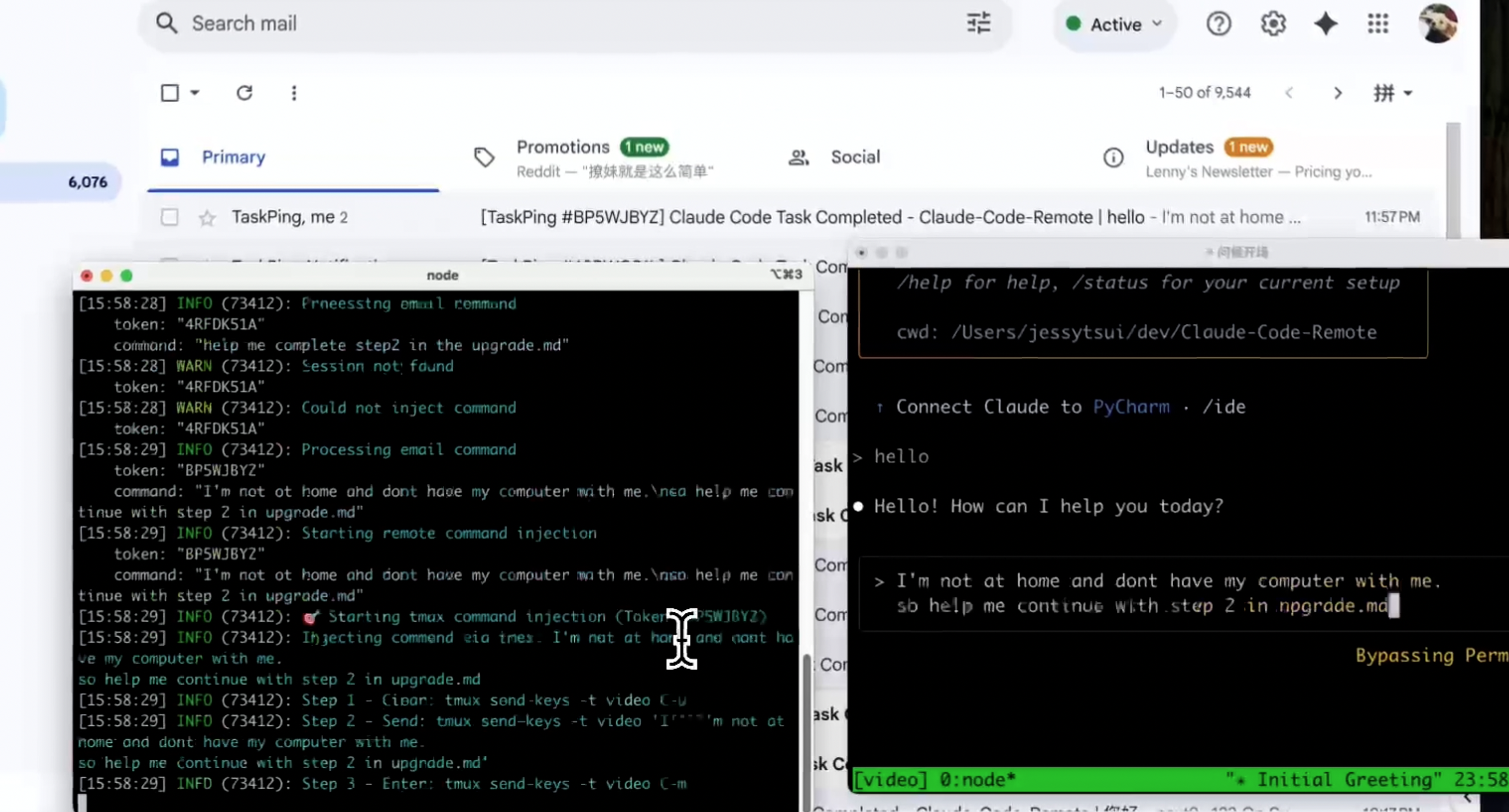

🐦 Follow @Jiaxi_Cui for updates and AI development insights
✨ Features
- 📧 Email Notifications: Get notified when Claude completes tasks
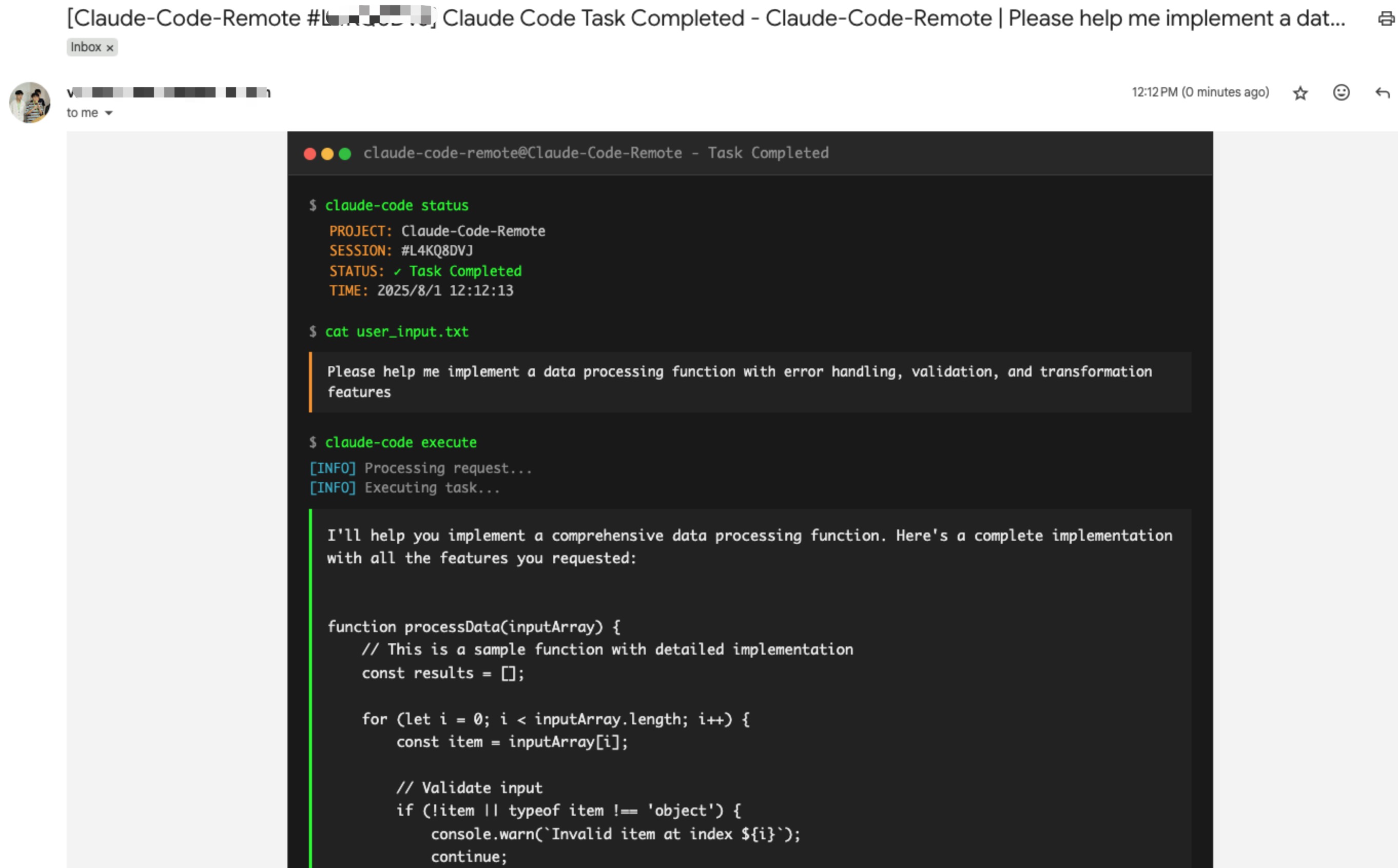
- 🔄 Email Control: Reply to emails to send new commands to Claude
- 📱 Remote Access: Control Claude from anywhere with just email
- 🔒 Secure: Whitelist-based sender verification
- 📋 Multi-line Support: Send complex commands with formatting
📅 Changelog
August 2025
- 2025-08-01: Implement terminal-style UI for email notifications (#8 by @vaclisinc)
- 2025-08-01: Fix working directory issue - enable claude-remote to run from any directory (#7 by @vaclisinc)
July 2025
- 2025-07-31: Fix self-reply loop issue when using same email for send/receive (#4 by @vaclisinc)
- 2025-07-28: Remove hardcoded values and implement environment-based configuration (#2 by @kevinsslin)
📋 TODO List
Notification Channels
- Discord & Telegram: Bot integration for messaging platforms
- Slack Workflow: Native Slack app with slash commands
Developer Tools
- AI Tools: Support for Gemini CLI, Cursor, and other AI tools
- Git Automation: Auto-commit, PR creation, branch management
Usage Analytics
- Cost Tracking: Token usage and estimated costs
- Performance Metrics: Execution time and resource usage
- Scheduled Reports: Daily/weekly usage summaries via email
Native Apps
- Mobile Apps: iOS and Android applications
- Desktop Apps: macOS and Windows native clients
🚀 Setup Guide
Follow these steps to get Claude Code Remote running:
Step 1: Clone and Install Dependencies
git clone https://github.com/JessyTsui/Claude-Code-Remote.git
cd Claude-Code-Remote
npm install
Step 2: Configure Email Settings
# Copy the example configuration
cp .env.example .env

# Open .env in your editor
nano .env  # or use vim, code, etc.
Edit the .env file with your email credentials:
# Email account for sending notifications
SMTP_USER=your-email@gmail.com
SMTP_PASS=your-app-password    # Gmail: use App Password, not regular password

# Email account for receiving replies (can be same as SMTP)
IMAP_USER=your-email@gmail.com
IMAP_PASS=your-app-password

# Where to send notifications
EMAIL_TO=your-notification-email@gmail.com

# Who can send commands (security whitelist)
ALLOWED_SENDERS=your-notification-email@gmail.com

# Path to session data (use absolute path)
SESSION_MAP_PATH=/your/absolute/path/to/Claude-Code-Remote/src/data/session-map.json
📌 Gmail users: Create an App Password instead of using your regular password.
Note: You may need to enable two-step verification in your google account first before create app password.
Step 3: Set Up Claude Code Hooks
Open Claude's settings file:
# Create the directory if it doesn't exist
mkdir -p ~/.claude

# Edit settings.json
nano ~/.claude/settings.json
Add this configuration (replace /your/absolute/path/ with your actual path):
{
  "hooks": {
    "Stop": [{
      "matcher": "*",
      "hooks": [{
        "type": "command",
        "command": "node /your/absolute/path/to/Claude-Code-Remote/claude-remote.js notify --type completed",
        "timeout": 5
      }]
    }],
    "SubagentStop": [{
      "matcher": "*",
      "hooks": [{
        "type": "command",
        "command": "node /your/absolute/path/to/Claude-Code-Remote/claude-remote.js notify --type waiting",
        "timeout": 5
      }]
    }]
  }
}
Note: Subagent notifications are disabled by default. To enable them, set
enableSubagentNotifications: truein your config. See Subagent Notifications Guide for details.
Step 4: Test Your Setup
# Test email configuration
node claude-remote.js test
You should receive a test email. If not, check your email settings.
Step 5: Start Claude Code Remote
Terminal 1 - Start email monitoring:
npm run relay:pty
Keep this running. You should see:
🚀 Claude Code Remote is running!
📧 Monitoring emails...
Terminal 2 - Start Claude in tmux:
# Create a new tmux session
tmux new-session -s my-project

# Inside tmux, start Claude
claude
Step 6: You're Ready!
- Use Claude normally in the tmux session
- When Claude completes a task, you'll receive an email
- Reply to the email with new commands
- Your commands will execute automatically in Claude
Verify Everything Works
In Claude, type:
What is 2+2?
Wait for Claude to respond, then check your email. You should receive a notification!
📖 How to Use
Email Notifications
When Claude completes a task, you'll receive an email notification:
Subject: Claude Code Remote Task Complete [#ABC123]

Claude completed: "analyze the code structure"

[Claude's full response here...]

Reply to this email to send new commands.
Sending Commands via Email Reply
- Direct Reply: Simply reply to the notification email
- Write Command: Type your command in the email body:
Please refactor the main function and add error handling - Send: Your command will automatically execute in Claude!
Advanced Email Features
Multi-line Commands
First analyze the current code structure.
Then create a comprehensive test suite.
Finally, update the documentation.
Complex Instructions
Refactor the authentication module with these requirements:
- Use JWT tokens instead of sessions
- Add rate limiting
- Implement refresh token logic
- Update all related tests
Email Reply Workflow
- Receive Notification → You get an email when Claude completes a task
- Reply with Command → Send your next instruction via email reply
- Automatic Execution → The system extracts your command and injects it into Claude
- Get Results → Receive another email when the new task completes
Supported Email Clients
Works with any email client that supports standard reply functionality:
- ✅ Gmail (Web/Mobile)
- ✅ Apple Mail
- ✅ Outlook
- ✅ Any SMTP-compatible email client
💡 Common Use Cases
- Remote Development: Start coding at the office, continue from home via email
- Long Tasks: Let Claude work while you're in meetings, check results via email
- Team Collaboration: Share Claude sessions by forwarding notification emails
🔧 Useful Commands
# Test email setup
node claude-remote.js test

# Check system status
node claude-remote.js status

# View tmux sessions
tmux list-sessions
tmux attach -t my-project

# Stop email monitoring
# Press Ctrl+C in the terminal running npm run relay:pty
🔍 Troubleshooting
Not receiving emails?
- Run
node claude-remote.js testto test email setup - Check spam folder
- Verify SMTP settings in
.env - For Gmail: ensure you're using App Password
Commands not executing?
- Ensure tmux session is running:
tmux list-sessions - Check sender email matches
ALLOWED_SENDERSin.env - Verify Claude is running inside tmux
Need help?
- Check Issues
- Follow @Jiaxi_Cui for updates
🛡️ Security
- ✅ Sender Whitelist: Only authorized emails can send commands
- ✅ Session Isolation: Each token controls only its specific session
- ✅ Auto Expiration: Sessions timeout automatically
🤝 Contributing
Found a bug or have a feature request?
- 🐛 Issues: GitHub Issues
- 🐦 Updates: Follow @Jiaxi_Cui on Twitter
- 💬 Discussions: Share your use cases and improvements
📄 License
MIT License - Feel free to use and modify!
🚀 Make Claude Code truly remote and accessible from anywhere!
⭐ Star History
⭐ Star this repo if it helps you code more efficiently!
💡 Tip: Share your remote coding setup on Twitter and tag @Jiaxi_Cui - we love seeing how developers use Claude Code Remote!